How to Set Up Your Church's Google Business Profile
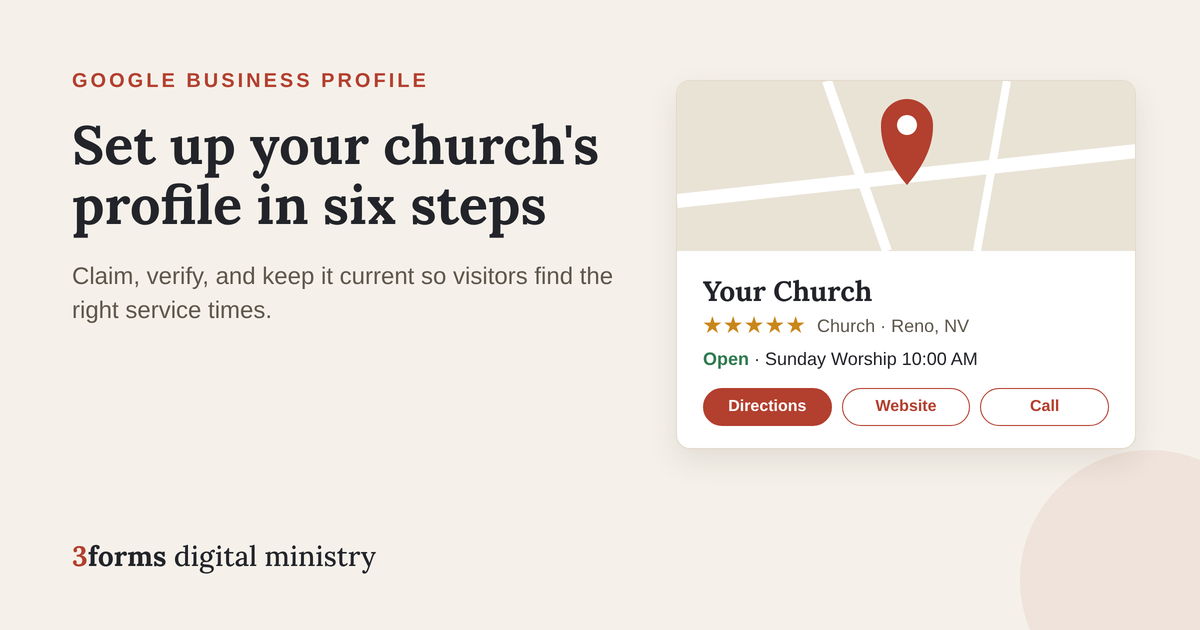
A step-by-step guide to claiming, verifying, and keeping your church''s Google Business Profile current so visitors find accurate service times.
Part 2 of our Google Business Profile series. Part 1: Why Your Church Needs a Google Business Profile.
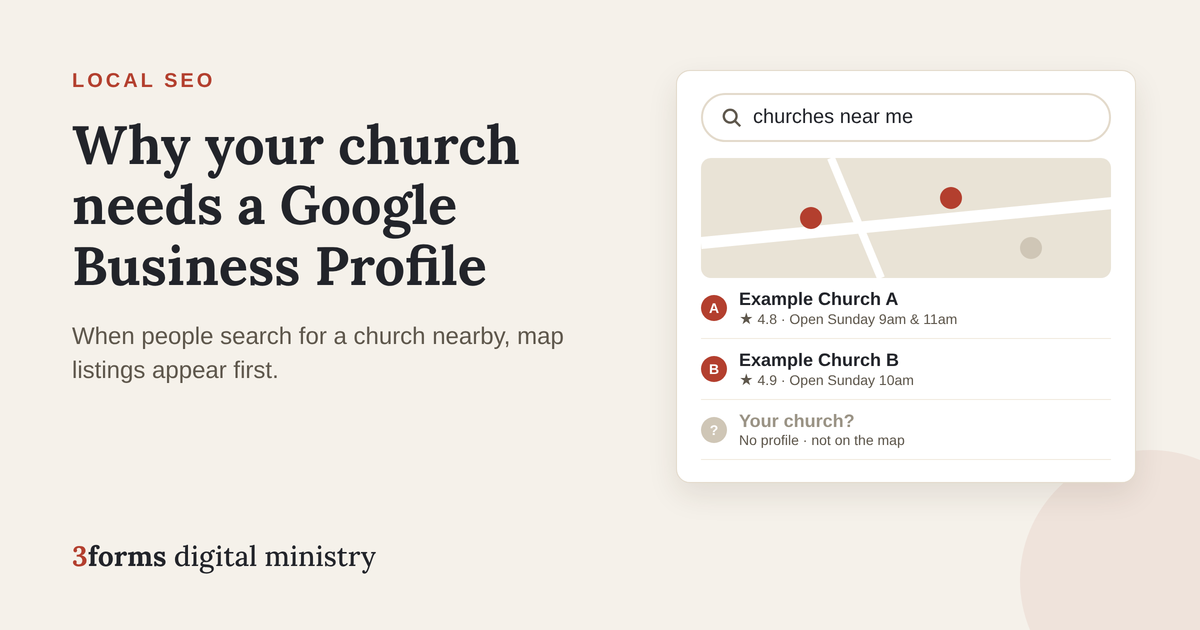
When someone searches for your church, or for "church near me," Google often shows a Business Profile before any website. It shows your name, map pin, service times, photos, and reviews. If that profile is missing, unclaimed, or out of date, a visitor may never get as far as your website.
We covered why that matters in Why Your Church Needs a Google Business Profile. This post covers how to set one up, step by step.
Step 1: Find out whether you already have a profile
Search Google for your church's name and city. If a profile appears on the right, or at the top on a phone, Google has already created one, often from public information.
If it shows a link like "Own this business?", click it to claim the profile. If nothing appears, go to business.google.com and create a new profile with a Google account the church controls. Avoid using someone's personal account.
Step 2: Choose the right name and category
Name: Use your church's name exactly as it appears on your sign. Don't add extra words like "Best Church in Reno"; Google's rules don't allow it, and it can get a profile suspended.
Category: Pick the most specific one that fits your church body, such as "Baptist church," "Presbyterian church," or "Non-denominational church." Use "Church" only if nothing more specific fits.
Step 3: Verify the profile
Google needs to confirm you represent the church before your edits go live. It chooses the method. Most often that's a short video showing your sign, entrance, and something only staff can access, such as unlocking the door or the office. Sometimes it's a phone call, text, email, or postcard.
Verification can take a few days. Until it's done, changes you make may not appear.
Step 4: Fill in every detail
A complete profile is more useful to visitors and more likely to show up in searches.
Address and map pin: Check that the pin sits on your building and parking entrance, not across the street.
Phone and website: Use a number someone answers. Link to your "Plan a Visit" page if you have one, otherwise your homepage.
Hours: Make sure your worship times are easy to find. Use "More hours" where Google offers options that fit, such as office hours.
Description: You have up to 750 characters. Say who you are, when you meet, and what a first-time visitor can expect, in plain language.
Attributes: Mark things like a wheelchair-accessible entrance, restrooms, or parking. Families and older visitors look for these.
Holiday hours: Add special hours for Christmas Eve, Easter, and other changes, so no one arrives to a locked door.
Step 5: Add real photos
Profiles with photos get more attention than those without. Start with:
- The outside of the building with your sign, so people recognize it when they arrive
- The entrance visitors should use
- The worship space during a service
- Your logo and a cover photo
Use your own photos. Only include people who have agreed to be shown, and get a parent's permission before showing children.
Step 6: Keep it active
A profile left untouched for years looks abandoned. A few habits keep it current:
Post updates: Share upcoming events, sermon series, and holiday services as Google posts.
Ask for reviews: Invite members to leave an honest review. Don't offer anything in return; Google's rules don't allow it.
Reply to every review: Thank people for positive reviews. Respond to critical ones with grace and an invitation to talk.
Keep details consistent: In November 2025, Google removed the Questions & Answers section. It now uses AI to answer visitors' questions from your profile, website, and reviews. Keep your name, address, phone, and service times the same everywhere, so those answers come out right.
Add a second manager: Give a second trusted person access, so the profile isn't lost if one person moves on.
How 3forms helps
Our Starter plan ($500/month) includes Google Business Profile setup, basic local SEO, and 8 posts a month. We claim or create your profile, guide you through verification, complete every section, and keep it current with posts and holiday hours. Not sure where your profile stands? Our free Church Digital Audit is a good place to start.
Get your free audit or see our plans.
Want help with this? See our church SEO service.
Explore Topics
Written by
3forms Digital Ministry
Content creator and writer sharing insights and stories.